How to Use Adviserry Boards With Claude Desktop via MCP
How to Use Adviserry Boards With Claude Desktop via MCP
The MCP server might be my favorite Adviserry feature, and I'm pretty sure it's the one the fewest people have set up. Which is a shame, because once you have it running, you'll wonder how you used Claude Desktop without it.
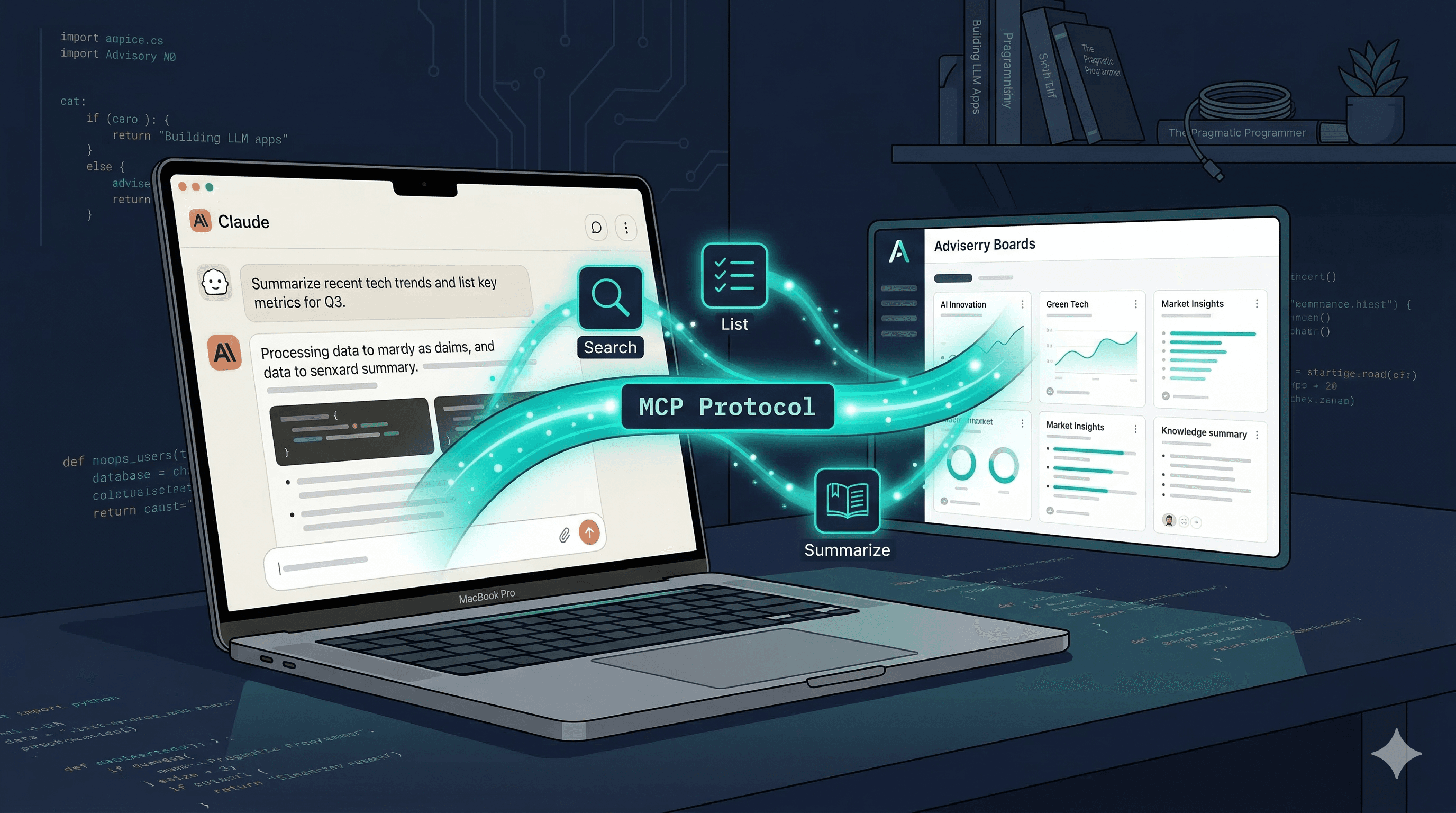
Here's the deal: MCP (Model Context Protocol) lets Claude Desktop connect to external data sources. When you connect Adviserry's MCP server, Claude can search your newsletter and YouTube boards, list your sources, pull recent issues, and get summaries, all without you opening the Adviserry app or website.
You're in Claude Desktop working on a project, you think "what did my marketing newsletters say about this?" and instead of switching tabs, you just ask Claude. It searches your Adviserry content and answers with citations. In the same conversation.
Setup takes about two minutes. Let's do it.
Step 1: Get your MCP credentials from Adviserry. Log into adviserry.com, go to Settings from the sidebar, and scroll to the "MCP Server Access" section. You'll see two things you need: your MCP Token (a long string) and the MCP Endpoint URL. Copy both.
Step 2: Open your Claude Desktop config file. On Mac, open this file in any text editor:
~/Library/Application Support/Claude/claude_desktop_config.json
If the file doesn't exist yet, create it. If it exists and already has other MCP servers, you'll add Adviserry alongside them.
Step 3: Add the Adviserry MCP server config. Add this to your config file (inside the mcpServers object):
{
  "mcpServers": {
    "adviserry": {
      "command": "npx",
      "args": ["-y", "@anthropic/mcp-remote", "YOUR_MCP_ENDPOINT_URL"],
      "env": {
        "MCP_HEADERS": "Authorization: Bearer YOUR_MCP_TOKEN"
      }
    }
  }
}
Replace YOUR_MCP_ENDPOINT_URL with the endpoint URL from your Adviserry Settings, and YOUR_MCP_TOKEN with your token. The Settings page in Adviserry actually shows this exact config block with your credentials pre-filled, so you can just copy and paste it.
Step 4: Restart Claude Desktop. Close and reopen Claude Desktop. When it starts up, you should see the Adviserry tools available in the tools menu (the hammer icon). If you see five tools (search_newsletters, list_boards, get_recent_issues, get_summary, get_topics), you're good.
Step 5: Start asking questions. Open a new conversation and try something like:
"Search my Adviserry newsletters for advice about customer onboarding"
"What boards do I have in Adviserry?"
"Get me the recent issues from my Marketing board"
"Summarize what my sources have said about content marketing"
Claude will use the MCP tools to search your boards and respond with answers grounded in your actual content.
What the five tools do:
search_newsletters is the main one. It takes a search query and returns relevant content from across your boards. This is what powers the "ask a question, get an expert-grounded answer" experience.
list_boards shows all your boards with their source counts and descriptions. Useful for orientation or when you want to know what's available.
get_recent_issues pulls the most recent newsletter issues or YouTube videos from a specific board. Good for "what's new this week?" type questions.
get_summary generates an overview of a specific board's content. Helpful when you want a high-level picture of what a board covers.
get_topics shows the main topics across your boards. Good for discovering what themes your sources cover most.
Tips from actually using this every day:
The MCP connection works best when you give Claude context about what you're working on first. "I'm preparing a pricing presentation for my board meeting. Search my newsletters for frameworks on SaaS pricing" gets much better results than just "pricing."
You can combine Adviserry MCP results with Claude's own knowledge. Ask Claude to analyze the advice from your boards, compare it with general best practices, or apply it to your specific situation. The MCP results are the raw material; Claude's analysis is what makes it useful.
Rate limits apply: the MCP server has usage limits to prevent abuse. For normal use (a few dozen queries per day), you'll never hit them. If you're building automated workflows on top of it, check the docs for specifics.
Both Core and Pro tier accounts get MCP access. You don't need Pro for this. The MCP server uses the same search infrastructure as the web app.
I use this setup for probably 80% of my Adviserry interactions now. It's just more natural to ask Claude a question in the middle of whatever I'm working on than to switch to a different app. The knowledge is there when I need it, where I need it, without breaking my flow.
Two minutes of setup. Permanent upgrade to how you use Claude Desktop. Go do it.